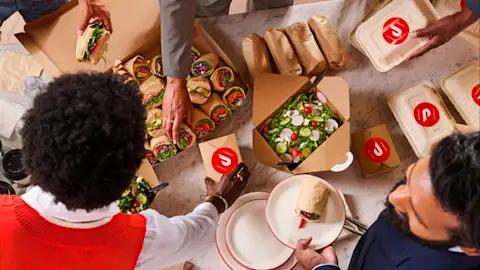
From team meetings and client lunches to late-night launch prep, food is part of doing business. The tricky part is keeping track of it. When work and personal orders live in the same DoorDash account, personal meals can end up on a company card, receipts get buried in your inbox, and expense reports take longer than they should.
A DoorDash Business Profile fixes that without a second account or a new app. Below, we'll cover what a Business Profile is, how to set one up, how to use it at checkout, and how it works with expense tools and your company's meal program.
What Is a DoorDash Business Profile?
A DoorDash Business Profile is a work lane inside the DoorDash account you already use. It's free, and you set it up directly in the DoorDash app, with no separate login.
With a Business Profile, you can:
Label each order as Personal or Business at checkout, so work orders are easy to filter later
Get a PDF receipt sent to your work email every time you place a business order
Send receipts to your expense tool automatically by linking a supported provider such as SAP Concur, Expensify, Emburse, Ramp, or Brex
Use it beyond restaurants on eligible orders, including grocery and more
Apply company meal benefits, like Meal Budgets or DashPass, if your employer offers them through DoorDash for Business
For employers, that means fewer mixed charges, cleaner records, and less time spent chasing receipts.
Separate Work and Personal Orders in One Account
You don’t need a second DoorDash account to keep work meals apart from personal ones. A lot of people search “can I have two DoorDash accounts” for exactly this reason, but a Business Profile gives you that separation inside the account you already use. Every order is labeled Business or Personal at checkout, work receipts go to your work email, and your personal orders stay out of your expense reports.
You keep your saved addresses, order history, and DashPass in one place, with one login and no switching between accounts when you’re ordering lunch between meetings.
Business Profile vs. DoorDash for Business Account
The two are built for different jobs.
A Business Profile is for your own work orders. You add it to the DoorDash account you already have to label orders as business and route receipts to your work email or expense tool. You don’t need a DoorDash for Business account to create one. Creating one also doesn’t enroll you in your company’s DoorDash for Business program or change your benefit eligibility.
A DoorDash for Business account is for managing meals for other people. Anyone can sign up for free. It’s where you set up meal programs, assign Meal Budgets, track spend, and manage DashPass for a team. If you’re ordering or budgeting for a group, you can create a business account.
The two work well together. If your company already uses DoorDash for Business, a Business Profile is an optional way to keep your own work orders organized and your receipts going to the right place.
How to Set Up a DoorDash Business Profile
You can create a Business Profile in about five steps, all inside the DoorDash app or on doordash.com.
1. Open Account Settings
Sign in to DoorDash as usual, go to Account Settings, and select your Account profile. On desktop, select Account in the left-hand sidebar, then select Account again under Account Settings.

2. Create Your Profile
Under Business Profile, select Create profile. You don't need a new account or login.

3. Add a Payment Method for Work Orders
Choose the payment method you want to use for business orders, like a corporate card. It can also be the same card you use for personal orders if your company reimburses you.

4. Set Up Your Receipts
Add a work email so a PDF receipt is sent there every time you order with your Business Profile. If your company uses a supported expense provider, link it now so receipts go there automatically. You can also skip this and link one later.

5. Choose Your Business Profile at Checkout
When you're ordering for work, select your Business Profile under Payment details at checkout, then place your order. More on that below.

Need to change something later? Once your profile is created, the Create profile button becomes Edit Profile. Go back to your Account page and select Edit Profile to update your work email, payment method, or expense provider.
How to Switch Between Personal and Business Orders at Checkout
Once your profile is set up, using it takes one tap:
Add items to your cart from any eligible store and go to checkout.
Review your order, delivery address, and any delivery instructions.
Under Payment details, select your Business Profile for work meals, or leave it on Personal for everything else.
Place your order. Your receipt goes to your work email and, if linked, to your expense tool.
Two things worth knowing before you order:
Checkout starts on Personal every time. You'll need to select your Business Profile for each work order, so make it a habit to check before you tap Place Order.
You can't switch profiles after an order is placed. If an order goes through on the wrong profile, it stays there, so it's worth a quick look at Payment details first.
Using Business Profiles for Group Orders
Many work meals are shared, whether it's a team lunch, a training session, or an event. Group Orders work with Business Profiles too:
Start a group order from the store page by selecting Group Order.
Choose who pays:
You pay for the order: As the organizer, you pay for the full cart and select your Business Profile at checkout so the receipt goes to your expense provider.
Everyone pays separately: Each person adds their own items and selects their own Business Profile at checkout, so each portion is expensed individually.
Set an order deadline and share the group order link. When the deadline hits, head to checkout and select your Business Profile to apply any eligible benefits and trigger receipt delivery.
That way, even large shared orders stay in line with company policies and expense workflows.
Connect Your Expense Tool to DoorDash
Linking an expense provider is where a Business Profile saves the most time. Once you link it, every business order's receipt is sent to your provider automatically and shows up in your available expenses. No forwarding emails or uploading PDFs.

Business Profiles integrate with:
SAP Concur: Helps employees submit expenses faster while keeping reporting consistent across vendors. When you link it, sign in with the email connected to your Concur account, which may be different from your DoorDash email.
Expensify: The Expensify DoorDash integration automates receipt sharing for business orders, so there are no manual uploads or forwarded emails.
Emburse: Supports enterprise-level expense workflows, making DoorDash meal expenses easier to review and reconcile.
Ramp: Fits into modern finance stacks and gives teams better visibility into meal spend with less effort.
Brex and other supported providers: Link them the same way from your Business Profile.
Link an Expense Tool After Setup
Skipped this step when you created your profile? Go to your Account page, select Edit Profile under Business Profile, and select Link next to Expense provider. Follow the sign-in prompts and verify the code to finish connecting.
Send Receipts for Past Orders
Once your expense tool is linked, receipts for new business orders go there automatically. For orders you placed before linking, go to your Orders page and send those receipts to your expense provider from there.
Use Company Meal Benefits With Your Business Profile
If your company offers benefits through DoorDash for Business, a Business Profile works right alongside them. You can see benefits like Meal Budgets or DashPass in your Business Profile and apply them at checkout, while your order stays tagged as business.
No DoorDash for Business product requires a Business Profile. It's an optional add-on for keeping work orders separate and sending receipts straight to your expense tool. Where your company has enabled it, you can also add an expense code at checkout from a searchable dropdown of preloaded codes, which helps finance teams bill each order correctly.
Why Business Profiles Help HR and Finance Teams
For the people who review and approve expenses, Business Profiles cut down on the back-and-forth. Work orders arrive already labeled, receipts land in the expense tool without anyone chasing them, and personal charges stay off company cards. That makes month-end reconciliation faster and reporting more consistent.
If you manage meals for a team, pairing Business Profiles with a DoorDash for Business account gives you both sides: employees keep their orders organized, and admins get budgets, spend tracking, and consolidated billing in one place.
A Business Profile is free, takes a few minutes to set up, and keeps every work order, receipt, and expense in the right lane. Business Support is available for employees at 855-830-5429.
Frequently Asked Questions
What is a DoorDash Business Profile?
A Business Profile is a free feature inside your existing DoorDash account that lets you separate work and personal orders, send PDF receipts to a work email, and connect business orders to supported expense providers. You don't need a separate app or login.
Do I need a DoorDash for Business account to create a Business Profile?
No. Any DoorDash customer can create a Business Profile in their own account. Creating one doesn't enroll you in your company's DoorDash for Business program or change your benefit eligibility.
Can I have two DoorDash accounts for work and personal orders?
You don't need to. A Business Profile lets you keep work and personal orders separate in one account by choosing Business or Personal at checkout.
Is there a cost to create a Business Profile?
No. Creating a Business Profile is free, you only pay for the orders you place.
Can I switch an order to my Business Profile after I place it?
No. Checkout starts on Personal, and you can't change profiles once an order is placed, so select your Business Profile under Payment details before you order.
Which expense providers work with Business Profiles?
Business Profiles integrate with SAP Concur, Expensify, Emburse, Ramp, Brex, and other supported providers. Once linked, receipts for business orders are sent to your expense tool automatically.
Can I use my company's meal benefits with a Business Profile?
Yes. If your company offers benefits like Meal Budgets or DashPass through DoorDash for Business, you can see them in your Business Profile and apply them at checkout.
Can employees use Business Profiles for group orders?
Yes. The organizer can pay for the full order or have everyone pay separately. In both cases, participants can select their Business Profile at checkout so receipts go to the right work email and expense provider.
Can I use my Business Profile for orders beyond restaurants?
Yes. Business Profiles work on eligible DoorDash orders, including restaurants, grocery, and more.
How do Business Profiles help HR and finance teams?
They reduce mixed personal and business charges, send receipts to expense tools automatically, and make meal expenses easier to review and reconcile.