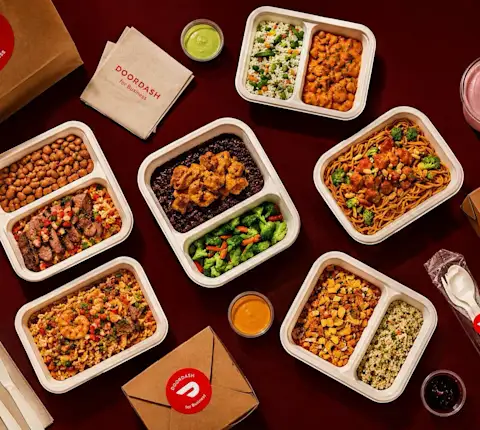
Key Takeaways
You don't need a DoorDash for Business account. You order from the DoorDash app or doordash.com/catering.
You can browse catering restaurants by cuisine and filter by schedule, packaging type, and dietary restrictions.
Orders can be scheduled up to 14 days ahead, and catering items show how many people they serve.
Every order comes with real-time tracking, $0 delivery fees, and a 100% on-time guarantee (terms apply*), plus the option of free setup.
If you've never ordered catering before, it can look like more work than it should be: calling restaurants, waiting on quotes, and guessing how many trays will cover the room.
Ordering corporate catering on DoorDash skips most of that. You pick a restaurant, enter your headcount, and schedule delivery for when your event starts. Here's how to order catering on DoorDash for the first time, from your first search to the moment the food arrives.
What Is DoorDash Corporate Catering?
Corporate Catering is DoorDash catering built for planned workplace events. One person places a single order for the whole group, and everything is delivered together. It works for team lunches, client meetings, all-hands, and larger company gatherings, and it's designed for groups of 15 to 200+ people.
The restaurants are a mix of top local favorites and trusted national brands, trained for large-format delivery. Menus include serving guidance, so you can see how many people an item feeds before you add it to your order.
A few things worth knowing before you start:
No business account needed. You order from your regular DoorDash account, with no onboarding or approval process.
$0 delivery fees. Every catering order comes with $0 delivery fees, which leaves more of your budget for the food.
On-time guarantee. Orders are backed by a 100% on-time guarantee (terms apply). If your order doesn't arrive on time, you get your money back.
Free setup. You can add free setup at checkout, and a Catering Dasher will set up the food when it arrives. It's only available with catering orders.
Corporate Catering is currently available in select cities, so check whether it's available in your city before you plan your event around it.
What to Have Ready Before You Order
Checkout goes faster when you have a few details sorted out first:
Event date and start time. This is what you'll schedule your delivery around.
Delivery address. Usually your office, but it could be a meeting space or offsite venue.
Headcount. Use the number of people you expect to attend, not the full invite list.
Dietary needs. Ask ahead about vegetarian, vegan, gluten-free, or other requirements so you can filter for them.
Format. Decide whether people will serve themselves from shared trays or need individually boxed meals.
If you're feeding a bigger group and want help estimating quantities, this guide on how much catering to order for a large group covers portions and headcount in more detail.
How to Order Catering on DoorDash, Step by Step
Once your details are ready, you can place a catering order in a few minutes, with no quote requests or back-and-forth with the restaurant. The screenshots below show the process on doordash.com.
Step 1: Sign In or Create a DoorDash Account
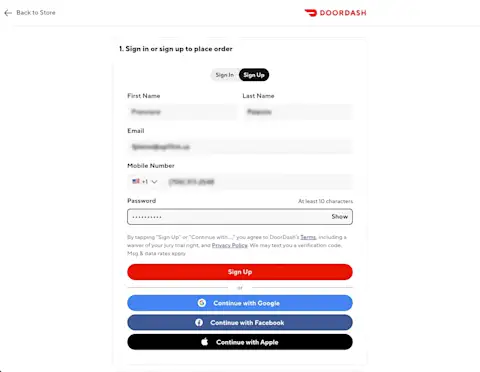
You'll need a DoorDash account to place your order, but it doesn't have to be a business account. If you already order from DoorDash, sign in with your usual login. If not, select Sign Up and enter your first and last name, email, mobile number, and a password of at least 10 characters. You can also continue with Google, Facebook, or Apple.
You can do this first or when you're ready to check out. If you start building a cart without signing in, DoorDash will ask you to sign in or sign up before you can place the order.
Step 2: Add Your Delivery Address
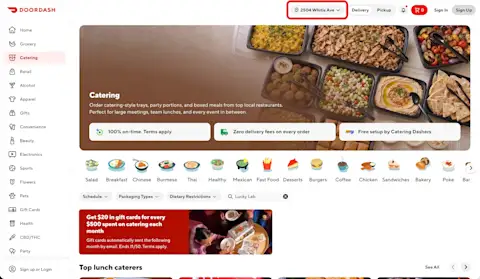
Enter the address where the food should go in the address field at the top of the page, then select Catering from the menu on the left. In the DoorDash app, look for the catering icon in the top menu bar instead.
If Corporate Catering is available at that address, you'll land on the Catering page, where restaurants offer catering-style trays, party portions, and boxed meals. The main perks are listed right at the top: the 100% on-time guarantee, zero delivery fees on every order, and free setup by Catering Dashers.
If catering isn't available at your address yet, you can join the waitlist on the Corporate Catering page to hear when it reaches your city. For a smaller event in the meantime, a group order lets a team of up to 15 people add their own meals to one shared cart.
Step 3: Search for Catering Restaurants
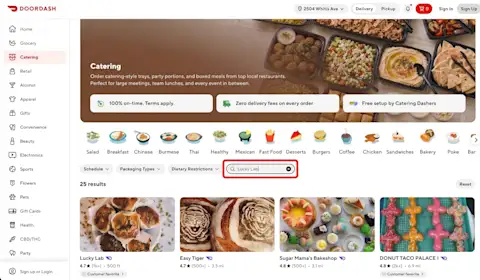
Browse by cuisine using the categories at the top of the page, like Salad, Breakfast, Mexican, Sandwiches, or Bakery. If you already know where you want to order from, type the restaurant's name into the search bar.
To narrow the results, use the filters below the categories:
Schedule: filter by when you need the food delivered.
Packaging Types: choose between formats like trays and individually boxed meals.
Dietary Restrictions: find options that work for vegetarian, vegan, gluten-free, or other needs in your group.
Packaging is worth deciding early. Trays work well for a shared spread, like a team lunch or an all-hands where people serve themselves. Individually boxed meals give each person their own portion, which helps for client meetings, trainings, or groups with mixed dietary needs. If you're figuring out how to order catering for an office lunch with your own team, trays are often the simpler pick.
Each result shows the restaurant's rating, number of reviews, and distance from your address. Still deciding on a cuisine? These popular corporate catering picks are a good place to look for ideas.
Step 4: Choose Your Items
Before you add anything, check the Catering section on the restaurant's page. Each restaurant lists how far ahead you need to order, its order minimum, and its cancellation window. These vary from one restaurant to the next, so it's worth a quick look before you build your order.
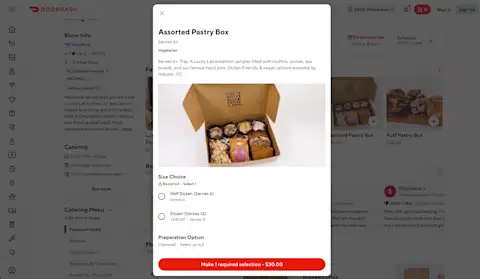
Select an item to see its details. Catering items list how many people they serve, any dietary tags like Vegetarian, and a description of what's included. Many items come in more than one size, each labeled with how many people it serves, so pick the size that matches your headcount. Some items also have optional preparation choices.
Once you've made the required selections, add the item to your cart and repeat for anything else you need.
Step 5: Review Your Cart
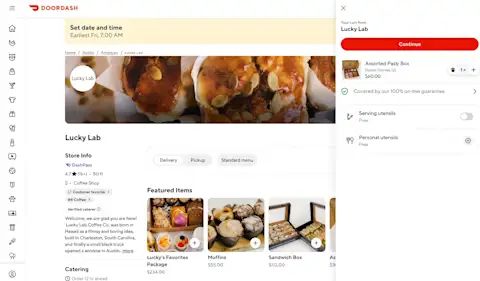
Open your cart to check your items and quantities. You can change the quantity or remove an item from here, or go back to the menu to add more. The cart also confirms that your order is covered by the 100% on-time guarantee.
This is where you add utensils, too. Serving utensils and personal utensils are both free, so turn them on if your group will need them. When everything looks right, select Continue.
Step 6: Schedule Your Order
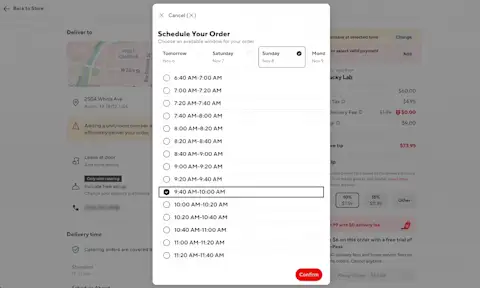
Next, choose when the food should arrive. Pick the day, select one of the available delivery windows, and select Confirm. Choose a window that lands a little before your event starts, so the food is ready when people walk in.
You can schedule catering orders up to 14 days in advance. The earliest available time depends on how far ahead the restaurant needs the order, which you saw on its page.
Step 7: Check Your Address and Delivery Details
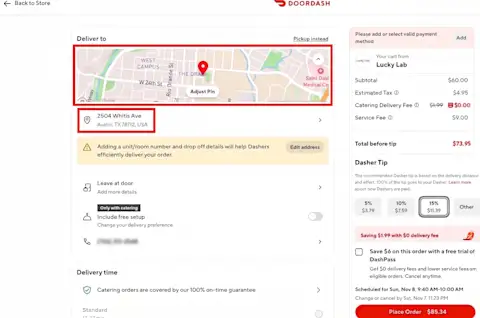
Before you pay, review the Deliver to section. Confirm the address, and use Adjust Pin if the map marker isn't in the right spot. DoorDash recommends adding a unit or room number and drop-off details so your Dasher can find you quickly, which makes a big difference in office buildings. Select Edit address to add them.
This is also where you'll find Include free setup, an option that's only available with catering orders. Turn it on if you'd like your Dasher to set up the food when it arrives.
Then check the order summary: subtotal, estimated tax, catering delivery fee (which shows $0), service fee, and Dasher tip. The tip is suggested based on delivery distance and effort, and 100% of it goes to your Dasher. Below the total, you'll see your scheduled delivery window and the deadline to change or cancel your order.
Step 8: Add a Payment Method and Place Your Order
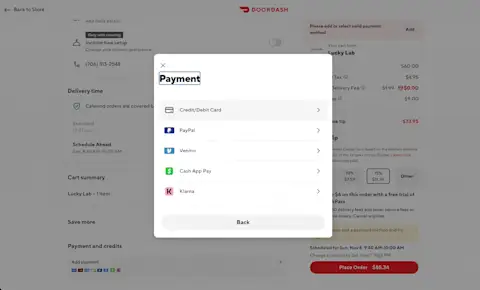
Under Payment and credits, select Add payment and choose how you want to pay: credit or debit card, PayPal, Venmo, Cash App Pay, or Klarna. Once your payment method is added, select Place Order, and you're done.
After You Place Your Order
Once your order is confirmed, real-time tracking keeps you updated from kitchen prep to drop-off. You can also message your Dasher if you need to share delivery details, like which entrance or floor to come to.
If plans change, you can update or cancel the order until the deadline shown at checkout. And your order is backed by the 100% on-time guarantee (terms apply*): if it doesn't arrive on time, you get your money back.
Place Your First Corporate Catering Order
Your first catering order comes down to a few steps: open DoorDash, find a catering restaurant that fits your group, check out with your headcount and delivery window, and track it to the door. With $0 delivery fees and an on-time guarantee on every order*, there's less to worry about on event day.
If your company plans a lot of events or needs extra support for a bigger one, the enterprise plan adds specialized invoicing, volume-based rebates, and a dedicated concierge who acts as your point of contact from planning through delivery.
*On eligible catering orders, catering delivery services include an on-time delivery guarantee. If your catering order is delivered twenty (20) minutes or more after the latest time designated in the delivery window provided at checkout (which is confirmed and agreed to by the Doordash member), eligible members will receive a refund. DoorDash, pickup, group, merchant-fulfilled, gift and Drive orders are not eligible. Excludes any catering orders that were received on time but are incomplete. Members must contact DoorDash for support within 14 days to request a remedy if their catering order was not delivered on time in accordance with these terms. Offer is not valid on orders with alcohol, grocery, or convenience items. Available only in the U.S. This offer is non-transferrable. Eligibility for a refund, and the form and amount, will be determined by DoorDash in its sole discretion. DoorDash reserves the right to modify, change or cancel this offer at any time. Need help? Reach out to support at 855-830-5429.
Frequently Asked Questions
Do I need a DoorDash for Business account to order catering?
No. You can order Corporate Catering from your regular DoorDash account, in the app or at doordash.com/catering. There's no onboarding or approval process, so anyone who plans events, like an office manager, executive assistant, or HR coordinator, can place an order.
How far in advance should I place a catering order?
You can schedule a Corporate Catering order up to 14 days in advance and choose the delivery window that matches your event's start time. Ordering once your date and headcount are confirmed lets you plan the rest of the event around a set delivery.
How many people can DoorDash Corporate Catering feed?
Corporate Catering is designed for groups of 15 to 200+ people. Each menu includes serving guidance to help you estimate quantities, so it works for mid-size team lunches as well as large company events and client meetings.
What happens if my catering order is late?
Every Corporate Catering order is backed by a 100% on-time guarantee. If your order doesn't arrive on time, you get your money back. Real-time tracking also lets you follow the order from kitchen prep to drop-off.
Is DoorDash Corporate Catering available in my city?
Corporate Catering is currently available in select cities, with more on the way. Check the Corporate Catering page to see if it's available in your area. If it isn't yet, you can join the waitlist to hear when it expands to your city.